Most WordPress sites that ran a patched PHP build this week were never touched. CISA’s alert on php2shell, last revised on 23 October, says the agency has not observed successful exploitation in the wild. So treat this as a routine you run once, then again after any bad week. Here are the seven signs a compromise leaves behind, where to look for each one without paying for a scanner, and the order to fix things in if you find one.
The signs that actually mean something
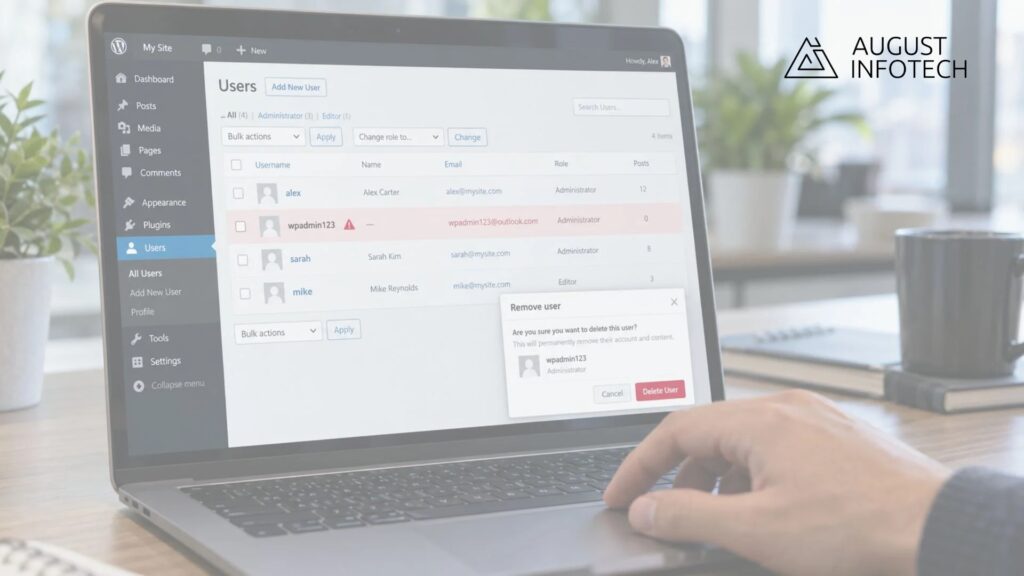
A compromised WordPress site usually shows one of seven things: a new administrator account, a redirect that appears only on phones or only from Google, PHP files in wp-content/uploads, a cron entry nobody added, theme files edited outside an update, new outbound requests, or spam pages in search results. One sign is enough to keep looking.
| Sign | Where to look | What normal looks like |
|---|---|---|
| New administrator | Users screen, filtered by Administrator | Accounts you created, on dates you remember |
| Redirect on phones or from search | Your site logged out on a phone, then a site: search | The page you expected, with no stop in between |
| PHP inside uploads | File Manager, wp-content/uploads | Images, PDFs and fonts. No .php files |
| Cron entry nobody added | Host panel cron list, or a cron plugin | The wp-cron ping your host set up |
| Theme files edited | File dates in wp-content/themes | Dates that match your last theme update |
| New outbound traffic | Access logs or the firewall log | Requests to your own services only |
| Spam in results | Search Console, Security Issues | Your own titles and your own pages |
Check the users screen first
Open Users, filter by Administrator, and count. On this site the count was two on 22 October, my login and the editor login, both created in August, which matches what I expect. That is the whole test. An account created last Tuesday, with an email address at a domain you have never heard of, is the one to look at. Read the registration date column before you read the display name, because an attacker will name the account something that looks like yours.
Look inside the uploads folder
WordPress never puts PHP files in wp-content/uploads. Open File Manager, go to that folder, and sort by type. A .php or .phtml file sitting next to the images is the file that usually serves the redirect or the spam page, and it often hides in a year and month folder created the same day. Delete it and check what created it.
Compare file dates with update dates
Theme and plugin files change when you update them, and those dates are fine. What should not happen is functions.php with a modified date from a day you updated nothing. Sort the theme folder by date modified, read the top ten entries, and match each one against your plugin and theme update history. An edited core file is the same signal, so run a checksum check on the WordPress core while you are there.
Ask for the logs, by date
Your host keeps access logs, and they are the only record you cannot rebuild afterwards. Ask support for the logs for 20 to 23 October, the days the CVE numbers were circulating and the patches went out. Then read them for POST requests to PHP files inside uploads, requests to index.php with very long query strings, and one IP hitting the same path hundreds of times in an hour. Any of those is worth a second look at the files behind them.
Check what Google sees
Search Console has a Security Issues section, and it is empty on a clean site. Then search site:yourdomain.com and read the results as a stranger would. Spam pages that never appear in your dashboard still appear in search, usually with a title you did not write. If a page you did not publish ranks for your own brand, start with the uploads folder.
Recovery, in the order that works
- Patch the server first. If you have not confirmed your PHP number yet, start with how to check your PHP version. Cleaning a site on an open build just gives it back.
- Change four passwords. WordPress admin, hosting panel, database and SFTP. Then use the log out everywhere option, because a stolen session survives a password change.
- Replace the security keys. WordPress can generate a fresh set of salts, and pasting them into wp-config.php signs every user out of every session.
- Delete before you restore. Remove the unknown admin account and any PHP file in uploads first, or a restore from backup puts them straight back.
- Restore the code, keep the content. Replace core, theme and plugin files from a backup taken before 20 October if you have one. Your posts and uploads live in the database and the uploads folder.
- Ask for a malware scan in the same ticket as the logs. Most shared hosts run one free and will send the report.
- Tell Search Console if spam was served. Fix the site, then use Security Issues and request a review. The manual action clears once they confirm the cleanup.
- Watch for two weeks. A second re-infection usually means nobody found the way in.
If nothing shows up
Then you are probably fine, and the patched build did its job. Keep the backup current, keep the version number checked, and run the same seven checks after the next PHP security release. The week php2shell happened is worth reading once so the next one looks familiar. WordPress itself also said plainly that no WordPress update is required for this, which is unusual and useful to know when a plugin seller emails you about it.
CISA’s alert is the page to check before you believe anyone who says the danger has passed. It carries the detection rule they added on 23 October.
Seven checks, about twenty minutes. The other option is hearing about it from a customer who got a redirect on their phone.