Your PHP version is one screen away in WordPress and one menu away in your host panel, and both take under a minute to read. Open Tools, then Site Health, then the Info tab, and look down the left side for Server. The line marked PHP version is the one that matters, and you want the full number, 8.2.35 rather than 8.2. Checking is easy. Changing it is where sites go down, so here is the order that works.
Where to find the version in WordPress
Tools, Site Health, Info, Server shows the exact PHP version, plus the web server software and the database version. Copy the whole number, not just the first two digits. If the Info tab opens on a summary, click Server in the left column. The same screen shows your memory limit, which is worth a glance while you are there.
The host panel is the other place, and it is the only place where you can actually change the number. WordPress reads whatever the server gives it. If the two screens ever disagree, the host panel is right and WordPress is showing you a cached page.
Which version numbers are actually safe
Four PHP lines have a patched build: 8.2.35, 8.3.36, 8.4.27 and 8.5.12. If your full number sits below the one for your line, you are on an affected build. The line you choose also decides how long you keep getting fixes, and 8.2 stops in nine weeks.
| PHP line | Safe version | Supported until | What the line is for |
|---|---|---|---|
| 8.5 | 8.5.12 | 31 Dec 2029 | Newest line, longest runway |
| 8.4 | 8.4.27 | 31 Dec 2028 | Active support ends 31 Dec 2026 |
| 8.3 | 8.3.36 | 31 Dec 2027 | Security fixes only |
| 8.2 | 8.2.35 | 31 Dec 2026 | Oldest line still supported |
If you want the background on why those four numbers exist, the week php2shell happened covers it.
PHP 8.2 reaches end of life on 31 December 2026, a little over nine weeks from today. Security fixes stop that day. The supported versions table on php.net is the page to trust for current dates, and the release announcement from 21 October lists the four patched builds in one place.
How to change it in the host panel
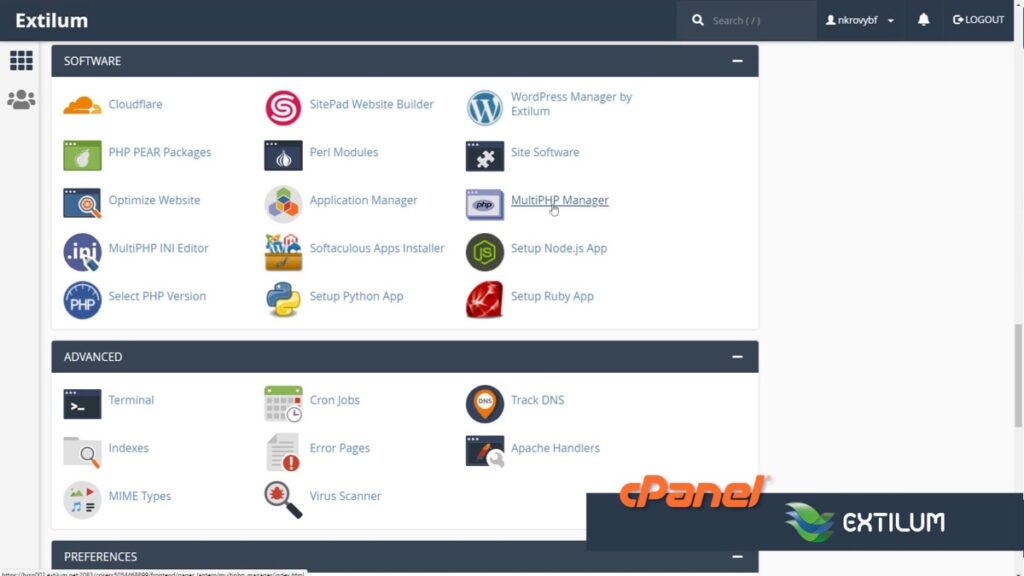
Every mainstream panel puts the same three controls in a different menu: pick the domain, pick the version, apply. cPanel calls the tool MultiPHP Manager and keeps it under Software. Tick the domain, choose the version from the dropdown, then press Apply. Hostinger hides the same setting under Websites, Manage, Advanced and PHP Configuration. MilesWeb’s mPanel carries its own PHP selector, and their support will set the version for you if the menu has moved since the screenshot in their help files.
On some shared plans the dropdown stops at an older line than the host actually supports. Plan limits decide how high the dropdown goes, and a ticket usually lifts them. Ask first, before you spend an evening reading migration guides.
What to do before you switch
- Take a backup. Files and database, downloaded off the server, not just a snapshot in the host panel you cannot reach if the site dies.
- Check that the theme and plugins allow it. Open each plugin page and read the last updated date and the changelog. Anything untouched since 2022 is the one that will break.
- Move one line at a time. 8.2 to 8.3 is a jump. 8.2 to 8.5 is three jumps at once.
- Write the date and the old number down. You will want both if something fails a week later and you cannot remember what changed.
- Pick a quiet hour. Not the morning of a launch, not the day before a client review.
The ten minutes after the switch
Purge every cache you have, starting with the plugin cache and then the browser. LiteSpeed keeps serving old CSS and old pages until you do. Then open the site in a private window while logged out, because a logged-in admin often sees a working page while visitors get an error.
Expect a short spell of 503s while the new PHP build is swapped in and the workers restart. I wrote about what a 503 does to your rankings during patching, and the short answer is that a few minutes costs far less than a week on an unpatched build. After that, load the home page, one post, the admin and the login page. Then check the header again. If a page white-screens, look at the error log, and if the fix is not obvious, switch the version back. The old build is still installed for exactly this reason.
If your host will not move you
Some shared plans lock the patch level even when the branch is yours to pick. Put the request in writing and name the versions, because a ticket that says “please update PHP” gets filed under maybe. Until they move you, php.net lists interim settings that cut exposure: memory_limit set to -1, post_max_size at 8M for sites without uploads, and session.upload_progress.enabled set to 0. Those reduce the risk. They do not fix it.
What to send support
Copy this, fill the two blanks, send it:
- My site runs PHP 8.2.33 on your shared server.
- PHP released 8.2.35 on 21 October for CVE-2026-109618 and CVE-2026-109619.
- Please confirm the patched build my account is on, and move me to 8.3.36 if my plan allows it.
- Please also confirm whether the firewall rules for those two CVE numbers are enabled on my server.
That is four lines, and it gives them nothing to guess at. Most hosts answer it the same day, because it reads like a customer who knows what they are asking for.
One backup, one number, one purge. Ten minutes, and the next date on your calendar is 31 December.





Pingback: What a Compromised WordPress Site Looks Like, and How to Check Yours - Siddharth Vira