The WordPress plugin directory already publishes the four facts that decide most installs: when the plugin last shipped, which WordPress version it was tested against, how many sites run it, and how many of its support threads get resolved. Read them in that order and a bad install usually stops before the Install button.
None of the four needs a paid tool. They sit in the plugin page, and the same numbers come back from a public API call that takes under a minute to run.
The 4 checks, in the order that catches the most
1. The date the plugin last shipped
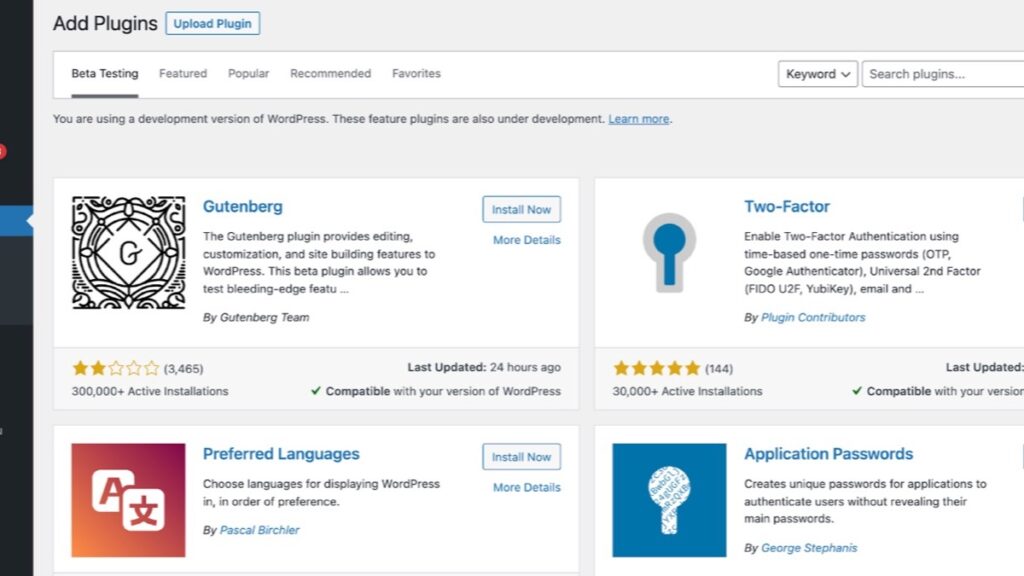
The directory shows this as Last updated. The date on its own says little, because a finished plugin updates rarely and a neglected one looks the same. What separates them is the shape of the updates and the size of the install base behind them. A security plugin with 5 million installs that shipped six weeks ago is a different thing from a form plugin with 300 installs that has not moved since 2023.
2. The WordPress version it has been tested to
The Tested up to field names the newest WordPress release the plugin author has run it against. A plugin tested to 6.8 on a site running 7.1.4 is not broken by definition, but nobody has checked it against the version you are serving. The install you are reading this on reports WordPress 7.1.4 on PHP 8.2.35, so a plugin that stops at 7.0 is a test nobody has run.
3. Install count next to resolved support threads
The API returns support_threads and support_threads_resolved as two separate numbers, and dividing one by the other is the closest thing to a health check the directory offers. Rank Math SEO sits at 39 of 43 threads resolved, Wordfence at 151 of 186, and LiteSpeed Cache at 37 of 73.
Read that ratio as a signal and not a score. A thread can be marked resolved without a fix, a plugin with a small support load can post a high ratio on four threads, and an unresolved thread about a conflict on one host says nothing about your host.
4. The PHP version it requires
The Requires PHP field is the one that turns into a white screen. A plugin that needs PHP 7.4 will not run on a host still serving 7.0, and the failure can land as a fatal error on every page rather than a warning in the dashboard. Check your PHP version in Site Health before you install anything that names a requirement above what you serve.
The 4 fields on 3 plugins live in the directory
Numbers pulled from the plugin directory on 7 November 2026, for three plugins that run on real sites, including the security, cache and SEO plugins that run on my own install.
| Plugin | Version | Last shipped | Tested to WordPress | Active installs | Threads resolved |
|---|---|---|---|---|---|
| Wordfence Security | 9.0.2 | 30 September 2026 | 7.1.4 | 5 million+ | 151 of 186 |
| LiteSpeed Cache | 7.9.3 | 3 November 2026 | 7.1.4 | 7 million+ | 37 of 73 |
| Rank Math SEO | 1.0.281 | 3 November 2026 | 7.1.4 | 4 million+ | 39 of 43 |
Three rows, three different answers. Wordfence has gone 38 days without a release, which for a firewall with 5 million installs is a normal gap and not a warning. LiteSpeed Cache and Rank Math both shipped on 3 November 2026, the same day, and both list 7.1.4 as tested, which is exactly the core version the site serves.
The row that would stop me is the third column, and only when it reads months rather than weeks. LiteSpeed Cache resolves 51 per cent of its threads against a 7 million install base, which is a number to read alongside the open threads themselves rather than a reason to uninstall it.
Where the 4 checks stop being enough
They say nothing about the parts a directory cannot show. A plugin can be current, tested and well supported and still write 40 tables into your database, load a script on every page, or leave the tables behind after you delete it. Those need a staging copy and a look at the database, which is the same preparation that makes a WordPress backup worth taking before any install.
Install counts also cover the free build in the directory, not the paid tier the plugin’s own site sells. If the feature you actually want sits behind a licence, the free install count is measuring a different product from the one you are about to buy.
The other gap is security, and no directory field covers it. A plugin that passed all four checks can still introduce the kind of weakness that shows up months later, which is why a check for a compromised WordPress site belongs on a schedule and not only after something breaks.
The API call that returns the 4 numbers
Open this in a browser and swap the slug at the end for the plugin you are considering:
https://api.wordpress.org/plugins/info/1.2/?action=plugin_information&request[slug]=litespeed-cacheThe response carries last_updated, tested, requires_php, active_installs, support_threads and support_threads_resolved. The slug is the last part of the plugin’s directory URL, so the page for LiteSpeed Cache is wordpress.org/plugins/litespeed-cache and the slug is litespeed-cache.
Cache plugins are the usual first install after a migration, and their settings matter less than the order you clear their layers in. That problem has its own answer in 5 layers to clear when a WordPress cache will not update. If the plugin question is part of a move, start from the WordPress migration checklist instead.
What a WordPress care routine does with these numbers
Run the four checks on every plugin already installed, twice a year, and the same way you would for a new one. The date field is the one that changes without you doing anything, because an author can stop shipping in a month that looks like any other. Anything that has not moved since the last time you looked is worth reading the support threads for before the next core update lands on top of it.
Start with the plugin you installed most recently and never revisited. Pull the JSON, read the last three fields, and open one unresolved thread about a WordPress version rather than a hosting quirk. Ten minutes of that beats reading a review page that ranks plugins by adjectives.