A WordPress backup has to be able to rebuild the whole install, and most backup plugins only promise you the database. When my host’s cleanup routine deleted 189 files from my own site on 7 September 2026, the database was untouched and every URL returned a 500 error, including the login screen.
Fixing it took five weeks, mostly because nobody would say what had been removed. The list of missing files is the most useful thing I got out of that month, so it is where this starts.
The 189 files that disappeared on 7 September 2026
The cleanup removed 83 WordPress core files, 96 plugin files and 10 theme files, plus two complete plugin folders. No post, page or setting was lost. A WordPress install breaks in that state because core files load from fixed paths on every request, so one missing file can take down every URL at once.
| What was deleted | Files | Detail |
|---|---|---|
| WordPress core | 83 | Mostly wp-includes |
| Plugins | 96 | Site Kit 66, LiteSpeed Cache 16, Rank Math 13 |
| Themes | 10 | 8 of them belong to Astra |
| Entire plugin folders | 2 | milesweb-tools and starter-templates-onboarding |
Two details made the cause clear. Every file that survived was byte-identical to its official package, so nothing had been modified or injected. Every deleted file sat in a folder carrying the same timestamp, around 11:00 pm IST on 7 September 2026, which is the shape of an automatic removal rather than an intrusion.
One missing file was enough to break every page
The fatal was wp-includes/Requests/src/Autoload.php, which class-wp-http.php pulls in on every page load. With that file gone, WordPress could not finish loading, so the host returned its generic critical error page on the homepage, on posts and on wp-login.php alike.
That symptom is worth knowing by sight. A 500 on every URL, including the login screen, means core files are missing or damaged. A plugin conflict normally breaks part of the site and leaves the login working, which is the opposite pattern.
What a database-only backup would have restored
Posts, pages, users, settings and plugin options live in the database. Code does not. Restoring a dump over a site with missing files gives you the correct content inside the same broken install, and the 500 stays exactly where it was.
Most shared hosts advertise backups as a database and a copy of uploads, because uploads are the heavy part and the part people cannot regenerate. Core, theme and plugin files are treated as replaceable downloads. They are replaceable until the version you were running is no longer on offer, or until you are rebuilding by hand with no shell access and no working admin.
The 4 things a restore-ready backup holds
- The files, not only uploads. The whole
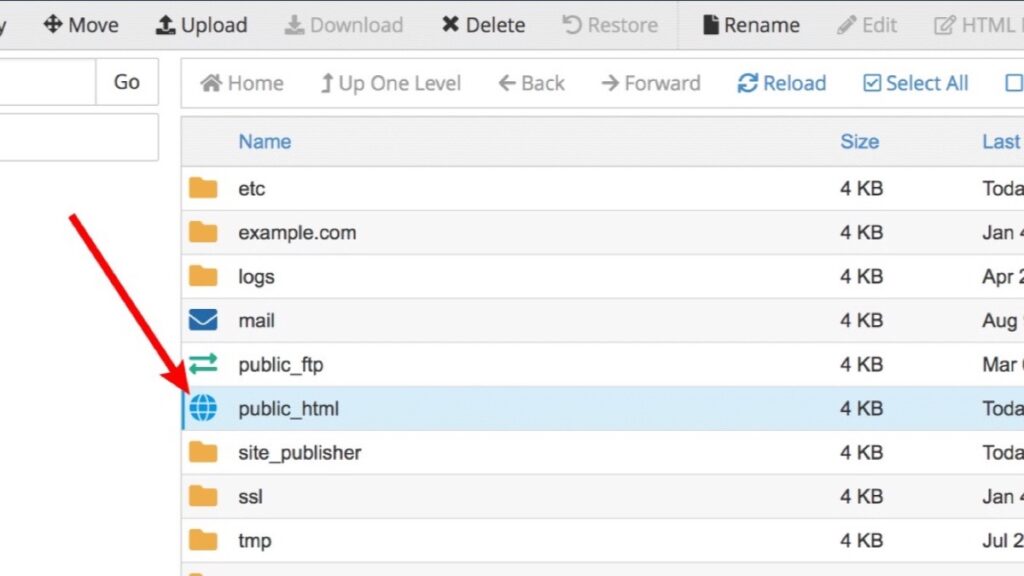
public_htmlis simplest. At minimum you needwp-admin,wp-includes,wp-contentandwp-config.php. - The database. A dump you can import, not an export screen you have never opened.
- The version numbers. The WordPress version, each plugin’s version, the theme version and the PHP version. A plugin folder pulled from a fresh zip is not the version that was running last week.
- A copy that lives somewhere else. A snapshot inside your hosting account is convenient, and it is also the one you cannot reach when the account is locked or the cleanup runs a second time.
The third item is the one people skip and the one that caused me trouble. I rebuilt from official packages because the versions were still available. I also had to re-check the previously deleted files afterwards for repeat deletions, since the cleanup was automatic and nothing guaranteed it had finished.
How to test a backup in about 20 minutes
A backup nobody has opened is a hope. Restore it somewhere harmless and walk through the order below, which goes from the most fragile part of the install to the least.
- Restore into a subdomain, a staging copy or a local install. Never test into the live folder.
- Load the login screen first, before the homepage. It touches more of the install than a cached page does.
- Open one post that has an image, a heading and a table.
- Open the plugin screen and confirm the versions match what you recorded.
- Compare the uploads folder against the live one by file count, not by eye.
The checksum check that proves a core install is complete
WordPress publishes an md5 hash for every core file, and the list is public. I requested the checksums for version 7.1.3 today, 6 November 2026, and it returned a map of file paths to hashes, which is enough to verify a core install without shell access.
With WP-CLI the same job is one command, wp core verify-checksums, and it reports missing files and modified files as two separate lists. Without shell access, download the official package and compare the file list against the one the install is serving.
This check covers core only. It says nothing about plugins, uploads or the database, so treat it as one row of the test rather than the test. For plugins, the vendor’s own zip for the installed version is the reference.
What to ask your host this week
Hosts differ on all of this, and the answers change what your backup has to do. I would put four questions in one ticket.
- Does your security scanner quarantine suspicious files, or delete them?
- Is there a snapshot taken before a cleanup runs, and how long is it kept?
- Do your backups include files as well as the database, and how many days do they cover?
- Can one folder be restored without rolling the database back?
Meanwhile, download wp-content and a database dump today, open the archive, and count the files against what the server reports. If the two counts disagree, the backup is already broken and nothing has failed yet. That is the cheapest week to find out, and it is also why a restore is worth clearing the cache in the right order before you decide the restore went wrong.
The WordPress care hub keeps the rest of these jobs together. Two of them overlap with a broken install: how to tell whether a site is compromised rather than merely damaged, and how to check the PHP version before you change it.