A page that will not update is usually being served from one of five caches, and clearing the wrong one costs an hour. WordPress has no single cache switch. Your browser, the server’s page cache, the plugin’s combined CSS files, the CDN in front and PHP’s opcache each keep a separate copy, and each one has its own clear button.
I run a small site on LiteSpeed through a shared host, so I meet this problem every time I change a stylesheet. Two steps settle it every time: read the response headers, then clear the layer that answered.
Read the response headers before clearing anything
One request tells you which layer served the copy you are looking at. curl -sI https://yourdomain.com/ prints the headers, and x-litespeed-cache: hit means the server’s page cache answered without WordPress running at all. A cf-cache-status: hit would mean the CDN answered before the request reached the server.
My own homepage answered that way this evening, on 6 November 2026, with x-litespeed-cache: hit and x-powered-by: PHP/8.2.35 beside it. The HTML was built once and stored. Nothing I changed in the database in the last few minutes would have appeared.
The 5 layers, in the order to clear them
Clear from the outside in. Each row below is a different place the old copy can live, with the header or the symptom that identifies it.
| Layer | Where it lives | How to confirm it | How to clear it |
|---|---|---|---|
| 1. Browser | The visitor’s device | A private window shows the new version | Hard reload, or a private window |
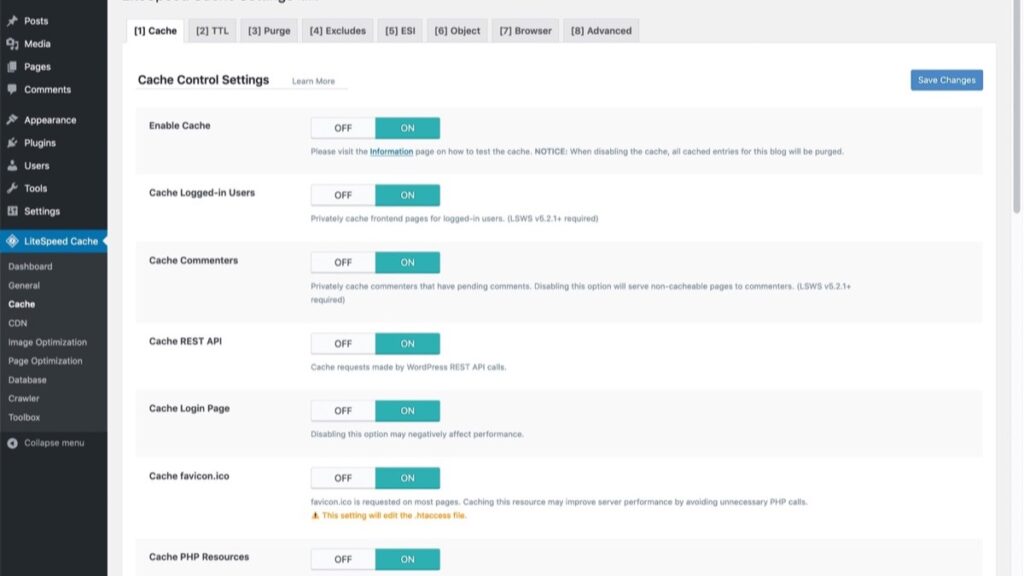
| 2. Page cache | The server, through LiteSpeed Cache or a plugin | x-litespeed-cache: hit | Admin bar, LiteSpeed Cache, Purge All |
| 3. Combined CSS and JS | Files the plugin generates | The stylesheet URL changes, its rules do not | Purge CSS and JS in the plugin, then Purge All |
| 4. CDN edge | The provider’s network | cf-cache-status: hit | Purge the URL in the provider dashboard |
| 5. PHP opcache | The PHP process on the host | A file edit changes nothing while other pages move | Restart PHP in the host panel, or wait out the TTL |
Rows 4 and 5 do not exist on every setup. My own site answers with LiteSpeed headers and no CDN headers, so the first three rows are where its cache problems live, and row 3 explains most of the strange ones.
Why a CSS change outlives a page purge
Through October 2026, every Additional CSS edit I made in the customiser kept serving the old rules after a normal reload. Editing the CSS again did nothing. Saving the customiser a second time did nothing. The admin bar’s Purge All was the only thing that worked, because the page cache was not the only copy of that stylesheet.
An .htaccess edit behaves the same way. I have sat looking at a rule that was definitely correct, watching the browser load a cached 200 that was written before the rule existed. The file was right. The copy being served was older than the file.
A cached 404 makes a correct redirect look broken
On 5 November 2026 I redirected 125 dead legacy slugs at once, in batches, because Google was still crawling paths from an old install. Several of them kept answering 404 straight after the rule was written. The redirects were fine. LiteSpeed was serving the 404 it had stored before they existed.
Adding a random query string to the address, something like ?nc=417, skips the stored copy and shows what the server actually answers. That one trick separates a broken rule from a stale one faster than any settings screen.
What clears itself and what needs a manual purge
Content edits clear themselves on this setup. When I save a post through the REST API, the new text is on the live page at the first request, and seven posts saved in one batch all rendered their new wording on the first check. Cache handling that only covers content is the reason people think caching is working until the day they touch a stylesheet.
- After a customiser or Additional CSS change: Purge All.
- After an
.htaccessedit: Purge All, because a stored 200 outlives the rule that contradicts it. - After creating or editing redirects: Purge All before testing any of them.
- After a plugin or theme update: load the page first, and purge only if the markup is stale.
4 checks that identify the layer in about a minute
- Open the page in a private window. If it looks right there, the problem is the visitor’s browser and you are done.
- Add
?v=2to the address. If the new version appears, the page cache is holding the old copy. - Open the stylesheet URL from the page source. If its name changed but the rules did not, the plugin’s combined file is stale.
- Edit one word in the post and save. If that appears immediately, the page cache is working and the stale copy is above it, at the CDN or in the browser.
Four checks, one minute, and you know which button to press instead of pressing all of them. I would also write the answer down somewhere, because the same layer breaks in the same way on the same site, and the second time costs two minutes instead of an hour.
A restore makes this worse rather than better. An old page stays in the cache and makes a complete restore look broken, so clear the layer before you judge the files. What a WordPress backup has to hold decides whether the restore was possible in the first place.
The wider point is that a cache purge is part of publishing, not part of debugging. Sites that get this wrong are usually sites where the purge sits in a settings screen somebody opens once a month. The WordPress care hub collects the other maintenance jobs I do on a schedule, including the migration checklist where DNS goes last and the reason a 503 during PHP patching costs rankings. If your site runs on LiteSpeed, the plugin’s own settings are documented at docs.litespeedtech.com. Before blaming the cache, confirm which PHP version your host is actually serving.