That page means WordPress is still running and the MySQL database is not answering. The fault sits in one of three places, the connection details in wp-config.php, the database server at your host, or a file someone else changed. Work through them in the order below, because the first two cost minutes and the third costs a day.
Most of what breaks a WordPress site looks like a plugin problem at first. The WordPress care notes here are the ones that are not.
What the error page leaves out
WordPress catches the failed connection and prints one fixed line. It does not say whether the password is wrong or the database server is switched off, so the same page appears for a one-minute fix and a one-hour one. That blankness is why people start reinstalling plugins.
The distinction that saves the most time is between this error and a 500. On 7 September 2026 my own site went down and stayed down until 13 October 2026. Every URL returned a 500 critical error, wp-login.php included, and the cause was deleted core files rather than the database. If the page still carries your theme header and footer, the database is talking and the fault is somewhere else.
Check the wp-config.php values, then read the MySQL line
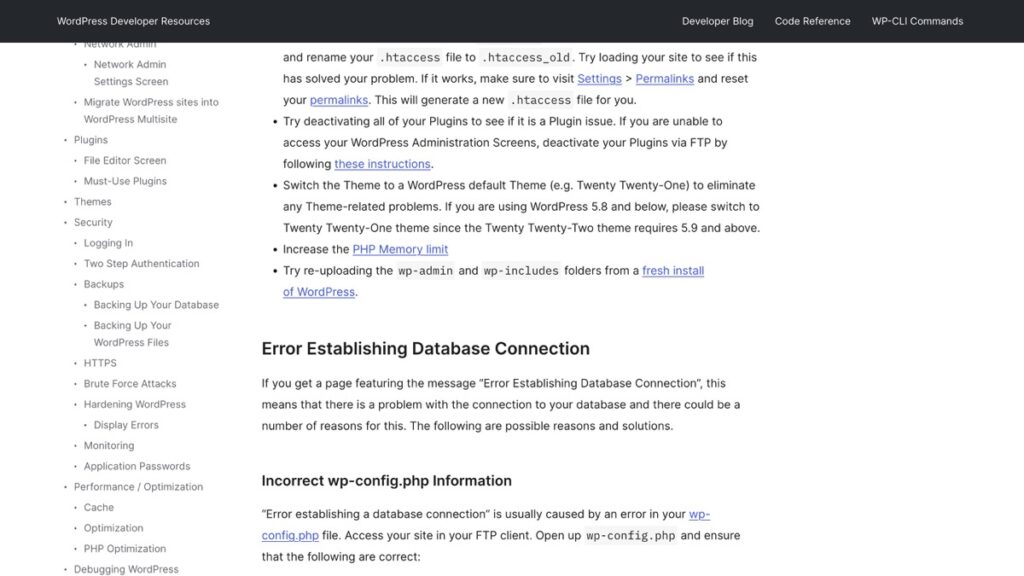
WordPress’s own common errors page says this error is “usually caused by an error in your wp-config.php file” and lists four values to confirm. Open the file over SFTP and read each one against what the hosting panel shows for the database.
- DB_NAME is the database name, not the user name. Panels often prefix it with the account name, so it reads like account_wp1 rather than wp1.
- DB_USER is the MySQL user, which is usually prefixed the same way.
- DB_PASSWORD is the database password and not the cPanel or hosting login, which people confuse because both are long strings from the same panel.
- DB_HOST is localhost on most shared hosting, and a separate hostname or a socket path on some managed setups.
DB_HOST is the line that goes stale after a migration. Two hosts rarely use the same value, so a copied site can land on a new server with perfect files and a database hostname that points at nothing. The WordPress migration checklist keeps DNS last for the same reason, since a hostname that resolves early hides the error you are about to fix.
Turn on WP_DEBUG and WP_DEBUG_LOG in wp-config.php and WordPress writes the real error to wp-content/debug.log. Both constants have to be true before the log fills, and the debug documentation puts the lines above the “That’s all, stop editing” marker. This is the step that turns a guess into a fix.
Three log lines cover most of it. “Access denied for user” is credentials, so the password or the user name is wrong. “Can’t connect to local MySQL server” is the server side, so MySQL is down or the hostname and port are wrong. “Unknown database” is a name that does not exist, which usually follows a restore into a database created with a different prefix.
Ask the host 2 questions before you touch the file
A database that has passed its size limit gets shut down, and that produces this exact page. WordPress documents two hosting causes, the database meeting its quota or the server being down. One support ticket answers both, and it is faster than testing anything locally.
In cPanel, MySQL Databases shows current usage against the limit. If the account is over it, the fix is space or a larger quota. Years of post revisions and the tables old plugins left behind are the usual weight in a WordPress database. A backup plugin that writes its copies into the database makes the problem worse, which is why a backup held as files is the safer shape.
A changed file and a half-finished update give the same page
WordPress lists a compromise as the third cause and points to a scan with Sucuri SiteCheck. If the credentials are correct and the database is up, an edit to wp-config.php is one way an intrusion shows itself, so read the whole file for lines you did not write rather than only the four values.
The fourth documented cause is a failed auto-upgrade. An update that stopped halfway leaves core files from two versions behind, and on some hosts that cuts the database connection. Check whether the last update finished before you change a connection setting that was working last week.
Which check to run for which page
The symptom narrows the list faster than the error text does. Read the row that matches what you actually see.
| What you see | Check first | Usual cause |
|---|---|---|
| The error on every page, wp-admin included | The 4 wp-config values | A wrong database name, user, password or host |
| The error right after a move to a new host | DB_HOST, then DB_NAME | The database was imported under the account prefix |
| The site loads slowly, then shows the error | Database size in cPanel | Quota reached, or a table that needs repair |
| A 500 critical error instead of this page | Core files | Deleted or mismatched WordPress files |
| The error after an update | The update log at the host | A failed auto-upgrade |
Two of those rows are not a database problem at all, and both of them send people to the wrong fix. A 503 is the third nearby case, and it comes from the server or the PHP layer rather than the database, which is worth knowing before you read what a 503 status code means. A stale cache is the other, and the five places WordPress can hold a cached page are listed in the cache layer checks.
Two edits that make it worse
A password with a dollar sign inside double quotes gets read as a PHP variable, so a value that works in cPanel fails in wp-config.php. Use single quotes around the password, or ask the host to reset it without $ and backslashes.
Changing the database password in cPanel without changing it in wp-config.php produces this error by design. If the password has to rotate, edit both in the same ten minutes and keep the old value until the page loads again. Take a copy of wp-config.php before opening it, because a missing quote there is enough to take the whole site down.
When the log says “Access denied” and the password is the one you just set in cPanel, the user is missing privileges on that database rather than using the wrong password. Add the user to the database with all privileges in cPanel, reload, and the page comes back without a reinstall.